Learn About Our History

Decades of experience

Lorem ipsum dolor sit amet, consectetur adipiscing elit, sed do eiusmod tempor incididunt ut labore et dolore.

This Text Box widget is placed within a Flexbox Container. If you feel you want to learn more about how containers can help you with your website, watch this video.

Lorem ipsum dolor sit amet, consectetur adipiscing elit, sed do eiusmod tempor incididunt ut labore et dolore magna aliqua. Ut enim ad minim veniam, quis nostrud exercitation ullamco laboris nisi ut aliquip ex ea commodo consequat. Duis aute irure dolor in reprehenderit in voluptate velit esse cillum dolore eu fugiat nulla pariatur. Excepteur sint occaecat cupidatat non proident.

Don’t Compromise When It Counts Most

Why Choose Us

This text briefly introduces your values to your visitors and tells them what sets you apart from the competition.

01

Driven

This text briefly introduces your values to your visitors.

02

Professional

This text briefly introduces your values to your visitors.

03

Experienced

This text briefly introduces your values to your visitors.

We Will Fight as Hard as We Have to for Our Clients.

Lorem ipsum dolor sit amet, consectetur adipiscing elit, sed do eiusmod tempor incididunt ut labore et dolore magna aliqua. Ut enim ad minim veniam, quis nostrud exercitation ullamco laboris nisi ut aliquip ex ea commodo consequat. Duis aute irure dolor in reprehenderit in voluptate velit esse cillum dolore eu fugiat nulla pariatur. Excepteur sint occaecat cupidatat non proident.

Lorem ipsum dolor sit amet, consectetur adipiscing elit, sed do eiusmod tempor incididunt ut labore et dolore magna aliqua. Ut enim ad minim veniam, quis nostrud exercitation ullamco laboris nisi ut aliquip ex ea commodo consequat. Duis aute irure dolor in reprehenderit in voluptate velit esse cillum dolore eu fugiat nulla pariatur. Excepteur sint occaecat cupidatat non proident.

We Will guide You Every Step Of The Way

Lorem ipsum dolor sit amet, consectetur adipiscing elit, sed do eiusmod tempor incididunt ut labore et dolore.

Important Things You Should Know

QUESTIONS & ANSWERS

Each question and answer are an item in a Toggle Widget. Change the number of items and customize their content in the editor panel.

Each question and answer are an item in a Toggle Widget. Change the number of items and customize their content in the editor panel.

Each question and answer are an item in a Toggle Widget. Change the number of items and customize their content in the editor panel.

Each question and answer are an item in a Toggle Widget. Change the number of items and customize their content in the editor panel.

Each question and answer are an item in a Toggle Widget. Change the number of items and customize their content in the editor panel.

Each question and answer are an item in a Toggle Widget. Change the number of items and customize their content in the editor panel.

Each question and answer are an item in a Toggle Widget. Change the number of items and customize their content in the editor panel.

Each question and answer are an item in a Toggle Widget. Change the number of items and customize their content in the editor panel.

Ask Us Anything, Anytime.

Collect visitor’s submissions and store them directly in your Elementor account, or integrate your favorite marketing & CRM tools.

There are many ways that you can watch and participate in the Digital Campus Worship Services on your television. If you have a Wi-Fi device or a smart TV, there is a good chance that you will be able to watch our live stream on the big screen!

Install the Facebook Watch app on Your TV

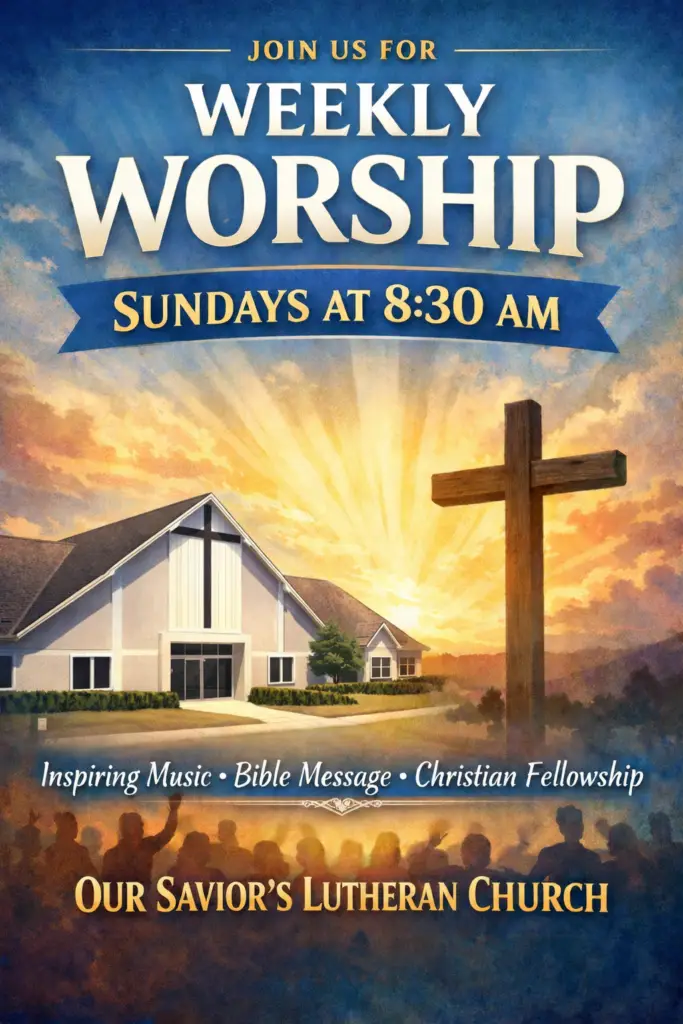
If you have one of the following devices you can install the Facebook Watch app directly onto your Television and follow the Our Savior’s Lutheran Church page. You will be able to watch live streams on Sunday and you will be able to see archived videos from our Facebook page.

  • Amazon Fire TV

  • Apple TV (4th generation or newer)

  • Samsung Smart TV (2015 or newer)

Chromecast the Digital Campus Service to your TV Wirelessly

If you have a Chromecast device on your TV, you can “Cast” the Livestream to your TV directly from the player on our webpage. In the top right corner of your Chrome browser, you will see three dots that open a menu when clicked. You can choose the “Cast” option and select your TV. Make sure that your streaming device and Chromecast are on the same wifi network. Once connected, press the “full screen” option on the webpage and it will play the full service fullscreen with audio on your TV.

Using an HDMI Cable

If you are watching the live stream on a laptop or a device with an HDMI port, you will most likley be able to plug your laptop into your television and use your TV as a mirror of your device.  When you connect your PC to a TV over HDMI or even VGA, Windows should automatically detect and display an image on it. Just make sure the TV is turned on and set to the right video input. You can edit the display settings on your computer by pressing Windows Key + P and selecting “Duplicate”