Bible Based. We build our lives on the truth of the Bible — both the Old and New Testaments. These aren’t just ancient words; they’re living stories of how God has moved through time, working with and through everyday, imperfect people just like us. God still speaks through this Word today, growing faith and bringing hope.
Saved By Grace. We gather to hear the good news: that Jesus saves. In worship, we listen to Scripture, pray together, and receive the gifts of grace through Communion. We believe — just like Martin Luther said — that we can’t come to faith by ourselves. It’s all God’s work through the Holy Spirit. Grace isn’t something we earn; it’s something we receive. And we try to live each day in response to that amazing love.
Serving Jesus Everyplace. Faith doesn’t stop at the church doors. Whether we’re at home, at work, with friends, in the neighborhood, or across the world, we want to show up like Jesus — with compassion, generosity, and grace. At Our Savior’s, we believe we’re called to love and serve in every place we go, trusting that God is already at work there.
Grounded in Scripture. Fueled by Grace. Serving with Love.
There are many ways that you can watch and participate in the Digital Campus Worship Services on your television. If you have a Wi-Fi device or a smart TV, there is a good chance that you will be able to watch our live stream on the big screen!
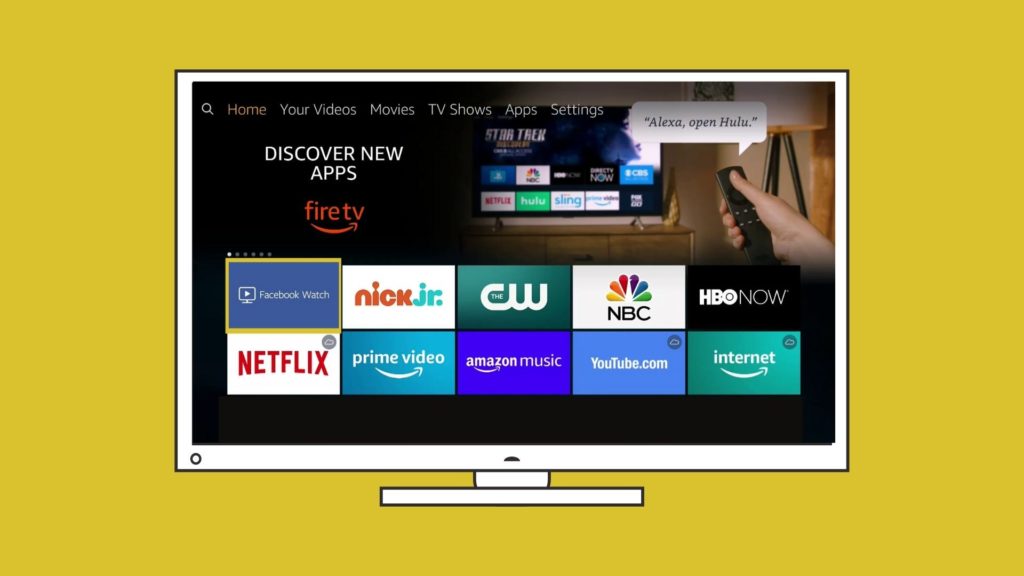
Install the Facebook Watch app on Your TV
If you have one of the following devices you can install the Facebook Watch app directly onto your Television and follow the Our Savior’s Lutheran Church page. You will be able to watch live streams on Sunday and you will be able to see archived videos from our Facebook page.
Amazon Fire TV
Apple TV (4th generation or newer)
Samsung Smart TV (2015 or newer)
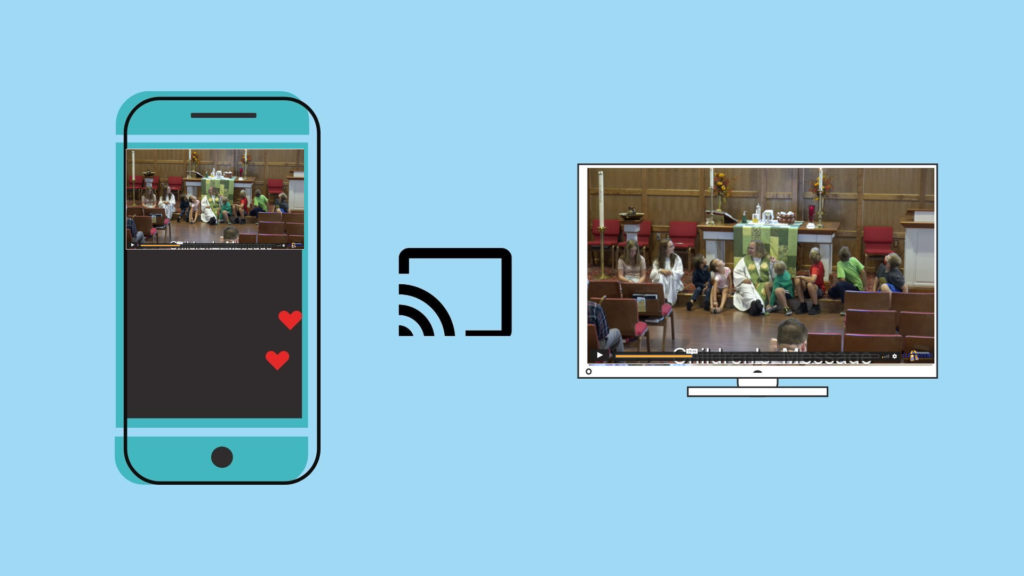
Chromecast the Digital Campus Service to your TV Wirelessly
If you have a Chromecast device on your TV, you can “Cast” the Livestream to your TV directly from the player on our webpage. In the top right corner of your Chrome browser, you will see three dots that open a menu when clicked. You can choose the “Cast” option and select your TV. Make sure that your streaming device and Chromecast are on the same wifi network. Once connected, press the “full screen” option on the webpage and it will play the full service fullscreen with audio on your TV.
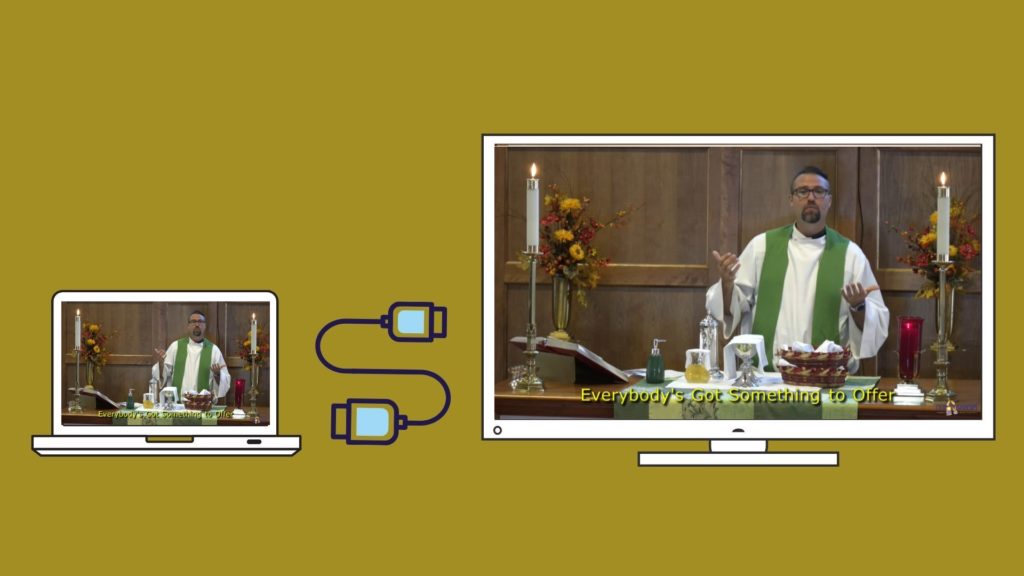
Using an HDMI Cable
If you are watching the live stream on a laptop or a device with an HDMI port, you will most likley be able to plug your laptop into your television and use your TV as a mirror of your device. When you connect your PC to a TV over HDMI or even VGA, Windows should automatically detect and display an image on it. Just make sure the TV is turned on and set to the right video input. You can edit the display settings on your computer by pressing Windows Key + P and selecting “Duplicate”